

Connect your Stripe account and get paid directly
Invoxa connects to your own Stripe account. Clients pay on Stripe's checkout page, the money goes straight to your Stripe balance, and Invoxa marks the invoice paid. Invoxa takes no fee; you pay only Stripe's.
Included in Invoxa Pro, on the web and in the iPhone app. 3-day free trial, no credit card needed.
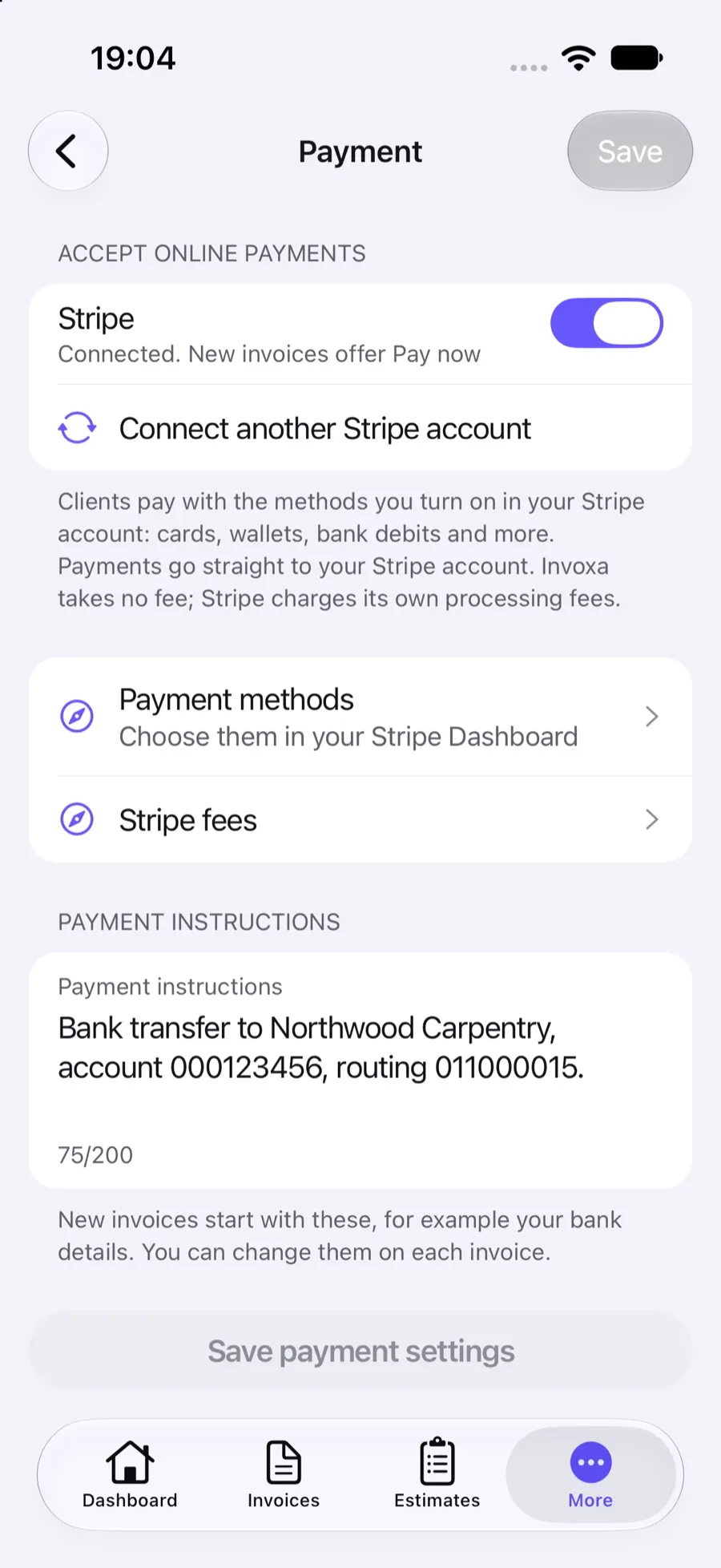
How it works
Press Connect Stripe
In Invoxa's payment settings, sign in to Stripe (or create an account) and approve the connection.
Choose the default
Turn on Stripe for new invoices; you can still switch it off on a single invoice.
Manage payments in Stripe
Payment methods, payouts, refunds and disputes stay in your Stripe Dashboard, where they belong.
What you can do
Your own Stripe account
Invoxa connects to your account through Stripe's sign-in; you keep full control of it.
Paid straight to you
Payments are charged on your Stripe account and paid out on your Stripe schedule.
No platform fee
Invoxa adds no fee to payments; Stripe's standard fees apply.
Automatic status
Paid and partially paid invoices are updated from Stripe, even if the client closes the page early.
Methods you choose
Turn cards, Apple Pay, Google Pay and bank debits on or off in the Stripe Dashboard.
Per-invoice switch
Leave the Pay button off on invoices you want paid by bank transfer or check.
How the connection works
Invoxa uses Stripe Connect: you sign in to Stripe from Invoxa’s payment settings and allow Invoxa to create checkout sessions on your account. Your Stripe account stays yours: Stripe pays out to your bank on your schedule, and you see every payment, fee and payout in the Stripe Dashboard. Invoxa never sees card numbers; see data security.
Direct charges, no platform fee
Each payment is a direct charge on your Stripe account. You are the merchant of record, Stripe’s fees are deducted from the payment as with any other Stripe charge, and Invoxa takes no application fee on top. Check Stripe’s current rates for your country on Stripe’s pricing page.
Keeping invoices in sync
When a client pays, Invoxa updates the invoice from three directions: Stripe’s notification, the client returning from the checkout page, and a regular check of open payments. So the invoice is marked Paid or Partially paid even if the client closes the browser before returning. Bank debits stay as processing until they settle.
Choosing which invoices can be paid online
The Stripe setting in your payment settings decides whether new invoices get a Pay button. On each invoice you can switch it on or off, for clients who pay by bank transfer, or when a card fee does not make sense for a large amount. Payment instructions for other methods sit right below; see payment terms.
Frequently asked questions
Does Invoxa charge a fee on Stripe payments?
No. Payments are charged directly on your Stripe account and Invoxa adds no application fee. You pay Stripe's standard processing fees, for example 2.9% + 30¢ per domestic card payment in the US.
Do I need a Stripe account?
Yes. You can create one during the connection. Stripe must support your country and approve the account for payments.
Where do refunds happen?
In your Stripe Dashboard. Invoxa records payments made through Stripe but does not issue refunds.
Can I connect a different Stripe account later?
Yes. Use Connect another Stripe account in the payment settings; new payments go to the newly connected account.
Related features
Online payments
Clients pay from the invoice link by card, Apple Pay, Google Pay or other methods you turn on in Stripe.
Record payments
Record full or partial payments in cash, by check or by card; the invoice status updates itself.
Data security
Encrypted connections, card payments on Stripe's page, hashed passwords and private document links.
 Read reviews on App Store
4.9 out of 5 on App Store
 Read reviews on Google Play
4.9 out of 5 on Google Play