

Payment terms, due dates and deposits
Tell clients when and how to pay on every invoice. Choose a payment term from same day to 90 days or set your own due date, ask for a deposit, and add your payment instructions once for all new invoices.
Included in Invoxa Pro, on the web and in the iPhone app. 3-day free trial, no credit card needed.
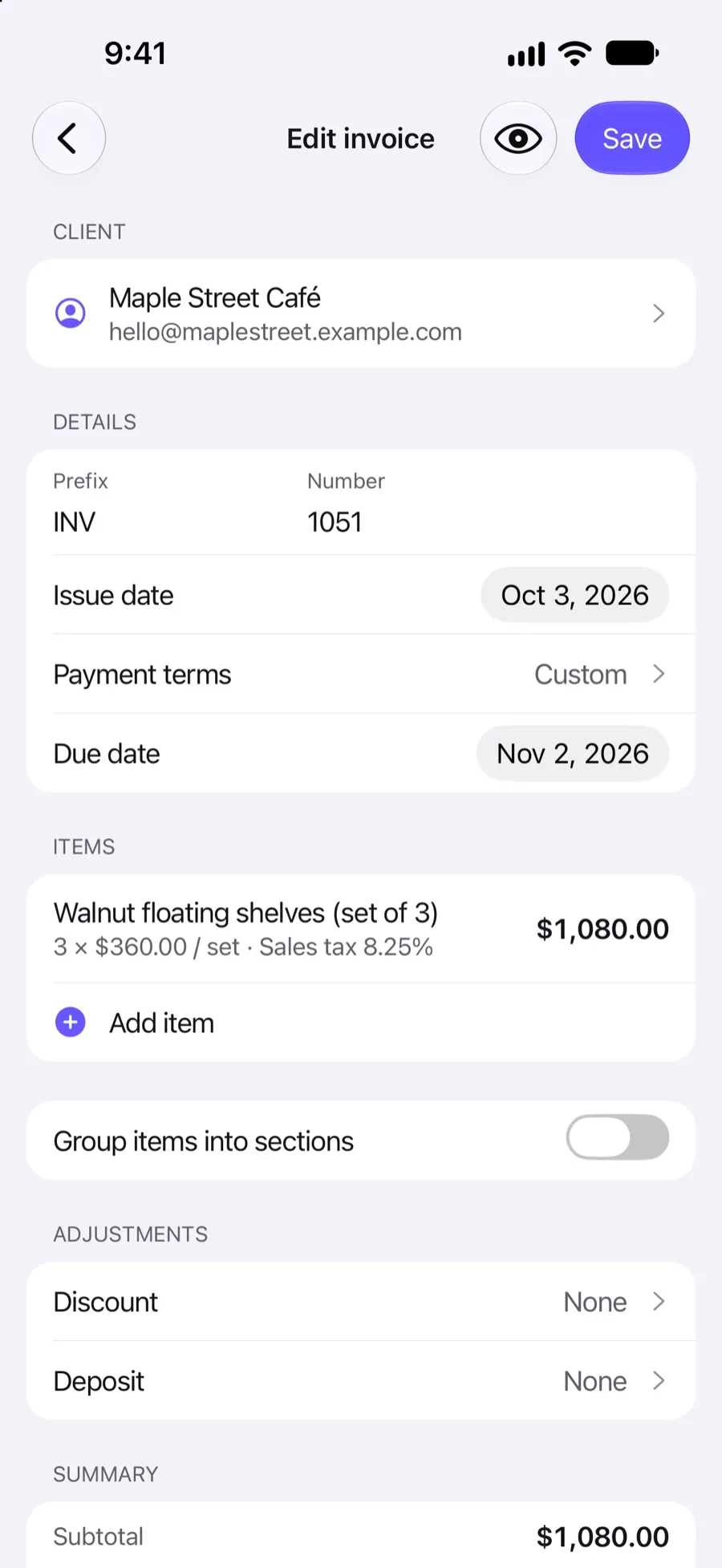
How it works
Set your default term
Pick the payment term most of your invoices use; every new invoice starts with it.
Adjust per client or invoice
Give a client their own term, or set a custom due date on a single invoice.
Add a deposit and instructions
Ask for part of the total up front and tell the client how to pay; both show on the invoice.
What you can do
Terms from same day to 90 days
Same day, Net 7, 14, 21, 30, 45, 60 or 90, with the due date worked out for you.
Any due date
Pick a date in the calendar and the term becomes Custom.
A term per client
Clients can have their own term; on the web it is filled in when you choose the client.
Deposits
Request a deposit as a percentage or a fixed amount, with its own due date.
Deposits from estimates
Set a deposit on an estimate and carry it over to the invoice when you convert it.
Payment instructions
Save your bank details or other instructions once; new invoices include them and you can edit them per invoice.
Why payment terms matter
A clear due date is the simplest way to get paid on time. “Net 30” on its own is easy to miss; a due date printed next to the total, with how to pay right below it, is not. Invoxa puts the payment term, the due date, any deposit and your payment instructions on the invoice, and can show the term and due date in the document header too.
Choosing a term
Use a short term (same day, Net 7 or Net 14) for one-off jobs and consumers, and longer terms (Net 30 to Net 90) when a business client’s accounts payable needs it. If a contract names a specific date, pick it in the calendar instead. Read more about common terms in our guide to invoice payment terms.
Deposits
For bigger jobs, ask for part of the money before you start. A deposit can be a percentage of the total or a fixed amount, and it has its own due date, so the client sees what to pay now and what later. On an estimate you can set the deposit and choose to carry it over to the invoice when the estimate is approved and converted.
Payment instructions
Bank transfer details, a check address or a note about card payments: write them once in your payment settings and every new invoice starts with them. Clients who can pay online also see a Pay button when you connect Stripe.
Frequently asked questions
Which payment terms can I use on Invoxa invoices?
Same day, Net 7, Net 14, Net 21, Net 30, Net 45, Net 60 and Net 90. You can also pick any due date in the calendar, and the term shows as Custom.
Can I ask for a deposit?
Yes. Add a deposit to an invoice or estimate as a percentage of the total or a fixed amount, with its own due date. On an estimate you can choose to carry the deposit over to the invoice when you convert it.
Where do I put my bank details?
In payment instructions. Save them once in your payment settings and every new invoice includes them; you can still change them on a single invoice.
Can different clients have different payment terms?
Yes. Set a default term for your business and a term on each client who needs a different one.
Related features
Record payments
Record full or partial payments in cash, by check or by card; the invoice status updates itself.
Online payments
Clients pay from the invoice link by card, Apple Pay, Google Pay or other methods you turn on in Stripe.
Estimates and quotes
Send estimates clients can approve, reject or comment on online, then turn them into invoices in one step.
 Read reviews on App Store
4.9 out of 5 on App Store
 Read reviews on Google Play
4.9 out of 5 on Google Play