
Email invoices with a link to view and pay
Send an invoice, estimate or purchase order straight from Invoxa. Your client gets an email with your business name, the amount and a button to open the document, download the PDF and pay online. Prefer messaging? Copy the link.
Included in Invoxa Pro, on the web and in the iPhone app. 3-day free trial, no credit card needed.
How it works
Press Send
The client's emails and a subject and message from your templates are filled in.
Adjust the message
Change the recipients, subject or text for this one document if you like.
The client opens the link
The email has a button to the document page, where the client can download the PDF and pay.
What you can do
A clean email
Your business name, the amount and a button in your brand color, with your message below.
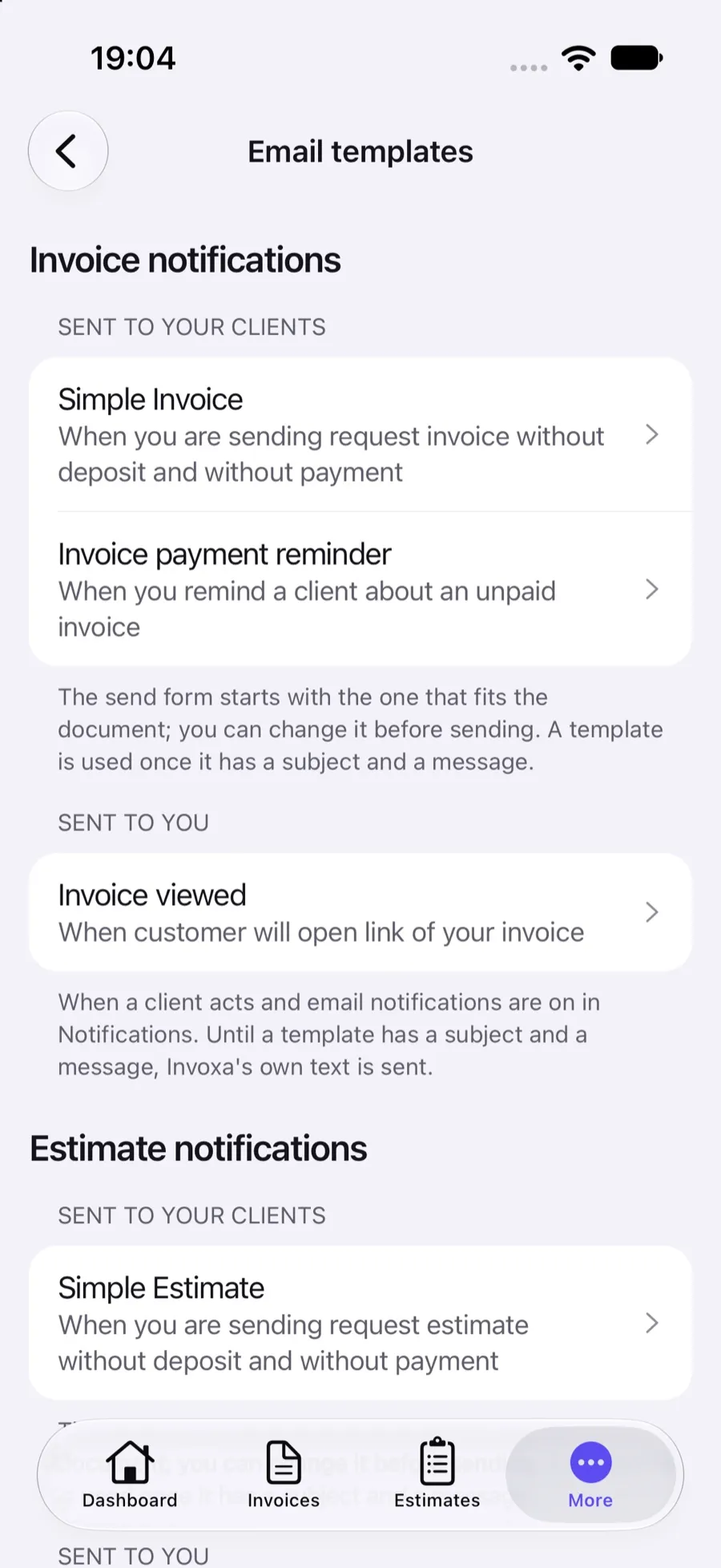
Templates for each case
A first invoice, an invoice with a deposit or online payment, a reminder for an unpaid invoice, estimates and purchase orders.
Reminders by hand
Send an unpaid invoice again and the reminder template is used.
Share the link
Copy the document link to send by text, WhatsApp or any app.
Know when it is opened
The status changes to Viewed when the client opens the document.
No account needed
Clients view, download and pay without signing up.
Sending from Invoxa
Press Send on any invoice, estimate or purchase order. The form fills in the emails marked to receive documents for that client, and a subject and message from the template that fits the document. Change anything for this one send, or edit the templates in your settings so every email starts the way you want.
What the client receives
The email shows your business name, the amount and a button in your document color that opens the document page. Your message comes below with the document’s key facts. On the page the client can read the document, download the PDF, open attachments and, if you connect Stripe, pay online.
Templates for each situation
Invoxa picks the template that fits: a simple invoice, an invoice with a deposit request or online payment, a payment reminder for an invoice you already sent that is still unpaid, a simple estimate or one with a deposit, an estimate reminder and a purchase order. Write your own subject and message for each, with tags for the client name, number and amount.
Links instead of attachments
A link keeps the email small, lets you see when the client opens the document (invoice tracking), and always shows the current version. For WhatsApp, text messages or a client portal of your own, copy the link and paste it there. For more on wording, read our invoice email guide.
Frequently asked questions
How do I email an invoice from Invoxa?
Open the invoice and press Send. The client's emails, a subject and a message are filled in from your templates; change them if you like and send. The client gets an email with a button to the invoice.
Is the invoice PDF attached to the email?
No. The email links to the invoice page, where the client can view it, download the PDF and pay online. The email stays light, and you see when the invoice is opened.
Can I send a payment reminder?
Yes, by hand. Send an invoice that is already sent and not paid, and Invoxa fills in your payment reminder template. There are no automatic reminders.
What should an invoice email say?
Who it is from, what it is for, the amount, the due date and how to pay. Our guide to writing an invoice email has examples.
Related features
Invoice tracking
See when a client opens, pays or answers a document, with statuses, notifications and an overdue view.
Online payments
Clients pay from the invoice link by card, Apple Pay, Google Pay or other methods you turn on in Stripe.
Invoice design
Eight templates, your logo, a brand color and control over the header, table, footer and signature.
 Read reviews on App Store
4.9 out of 5 on App Store
 Read reviews on Google Play
4.9 out of 5 on Google Play