

Import your old invoices from PDF or photos
Switching from Word, Excel or another invoicing app? Drop your old invoices as PDF files, photos or screenshots. Invoxa reads the client, the line items, the amounts, the dates and whether the invoice was paid, you check the result, and the invoices land in your account with the original attached. Your clients and items are created along the way, and your numbering continues where it left off.
Included in Invoxa Pro, on the web and in the iPhone and Android apps. 3-day free trial, no credit card needed.
How it works
Drop your files
PDF files from any app, photos from your phone or screenshots: up to 10 MB and 30 pages each, 20 files at a time.
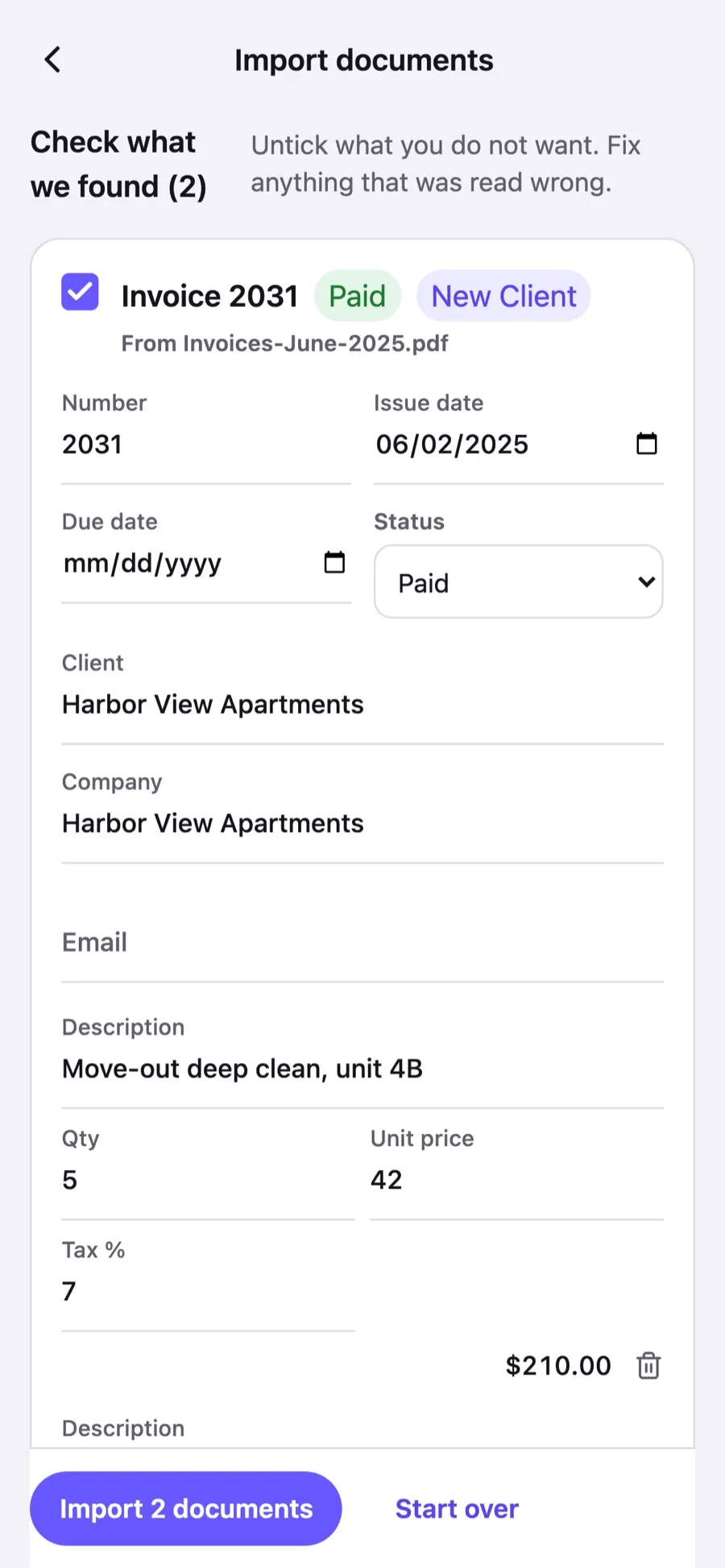
Check what was read
Each document shows its number, dates, client, lines, totals and status. Untick what you do not want and correct anything read wrong.
Import
Clients, items, invoices, estimates and payments are created in one go, and the original file is attached to each document.
What you can do
PDF, photo or screenshot
Exports from Word, Excel or another invoicing app, a photo of a printed invoice, a screenshot of an email.
Clients and items too
A client found on an invoice becomes a client in your list; a line becomes an item in your catalog. Existing ones are matched, not duplicated.
Payments and status
An invoice marked paid, or a receipt, is imported as paid with its payment; a partly paid one keeps its balance due.
Numbering continues
Your original numbers are kept, and your next invoice is numbered after the highest one in the account.
Original attached
The uploaded file stays attached to the imported document, so the paper trail is complete.
Nothing saved unseen
You see every document before it is created and can fix a date, a price or a client name first.
Why import your old invoices
A new invoicing app is only useful once your history is in it. Without the old invoices, the amounts your clients owe, your sales reports and your client list start from zero, and every client has to be typed again. With the import, a folder of PDFs or a few photos becomes your history in minutes.
What Invoxa reads
For each document: the type (invoice, estimate or receipt), the number, the issue and due dates, the currency, the client with company, email, phone and address, the line items with quantity, price and tax, a discount, the totals, the notes, and whether it was paid, partly paid or unpaid. A file that is not a sales document (a supplier’s bill, a bank statement) is shown as such and skipped.
How the check works
Every document appears as a card: tick to import, the number, the dates, the status, the client (with a note when it matches a client you already have), and the lines with the totals they add up to. When the lines do not add up to the printed total, the card says so and you can fix a quantity or a price before importing. Photos that are blurry or cut off are marked so you know where to look.
Good to know before you import
Imported invoices are saved as sent (or paid) with the dates printed on them; nothing is emailed to your clients. The original file is attached to each one, so you can always compare. Files are read by an AI model on our servers; see the privacy policy for who processes your data.
Frequently asked questions
Can I import my old invoices into Invoxa?
Yes. Open Settings, then Import documents, and drop your invoices as PDF files, photos or screenshots. Invoxa reads them, you check the result and import. Clients and items are created with them.
Which file types can I import?
PDF, JPEG, PNG, WebP and HEIC, up to 10 MB and 30 pages each; a PDF with several invoices is split into its documents. CSV and Excel (XLSX) exports from other invoicing apps are imported too, with their columns mapped for you.
Will it create duplicate clients?
No. A client with the same email, or the same name, as one you already have is matched to it; the rest are created once, even when they appear on several imported invoices.
What happens to the invoice numbers?
Numbers printed on your old invoices are kept when they are plain numbers and still free. Otherwise the next free number is used. After the import, your next invoice continues after the highest number in your account.
Are the imported invoices sent to my clients?
No. They are stored as sent or paid, so your reports and the amounts owed are right, but no email goes out.
Related features
Clients and items
Save clients with several emails, phones and addresses, and a catalog of items with prices, units and taxes.
Invoice attachments
Attach photos, scans and PDFs to invoices, estimates and purchase orders; clients open them from the link.
Invoice numbering
Automatic numbers with your own prefix and starting number for invoices, estimates and purchase orders.
 Read reviews on App Store
4.9 out of 5 on App Store
 Read reviews on Google Play
4.9 out of 5 on Google Play